
Members Table
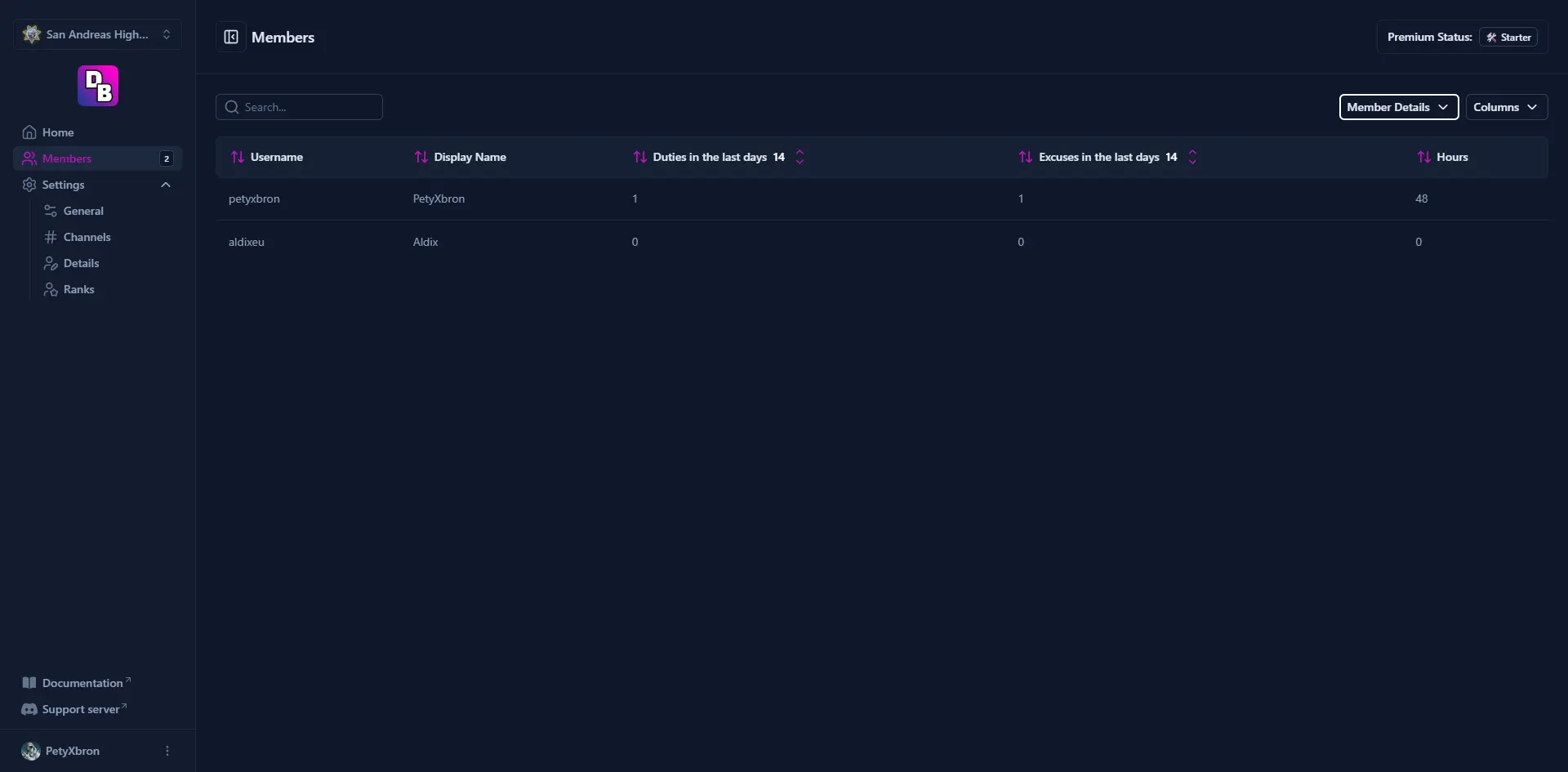
The Members Table is the core roster system that tracks who belongs to your team and stores their details, duties, excuses, and other records. Administrators manage members using the /member command.
Requirements
- You must have the Administrator Discord permission or be assigned an admin role configured for your team.
- The bot must be set up on your server (
/setup).
Managing Members
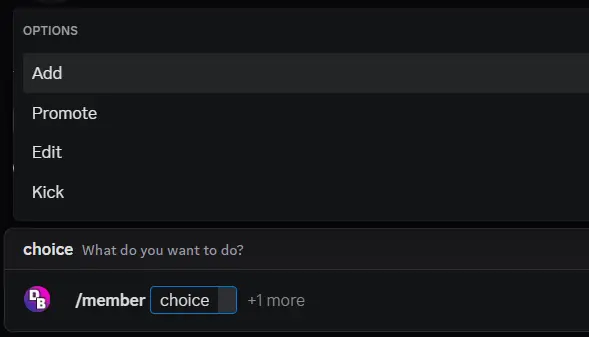
The /member command takes two options:
- choice — the action to perform:
add,edit,promote, orkick - member — the Discord user to act on
Adding a Member
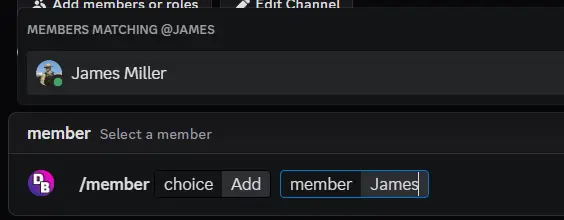
/member add @user
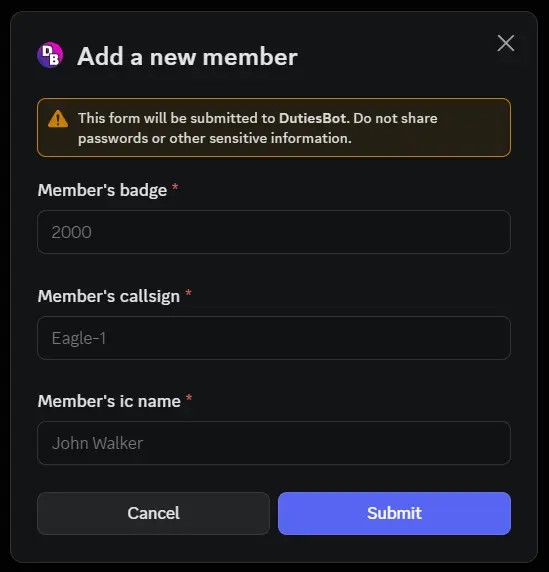
Adds a Discord user to the team roster. If your team has member details configured, a modal appears asking you to fill them in (e.g. in-game name, rank number, etc.). Up to 5 custom detail fields are supported.
After adding the member:
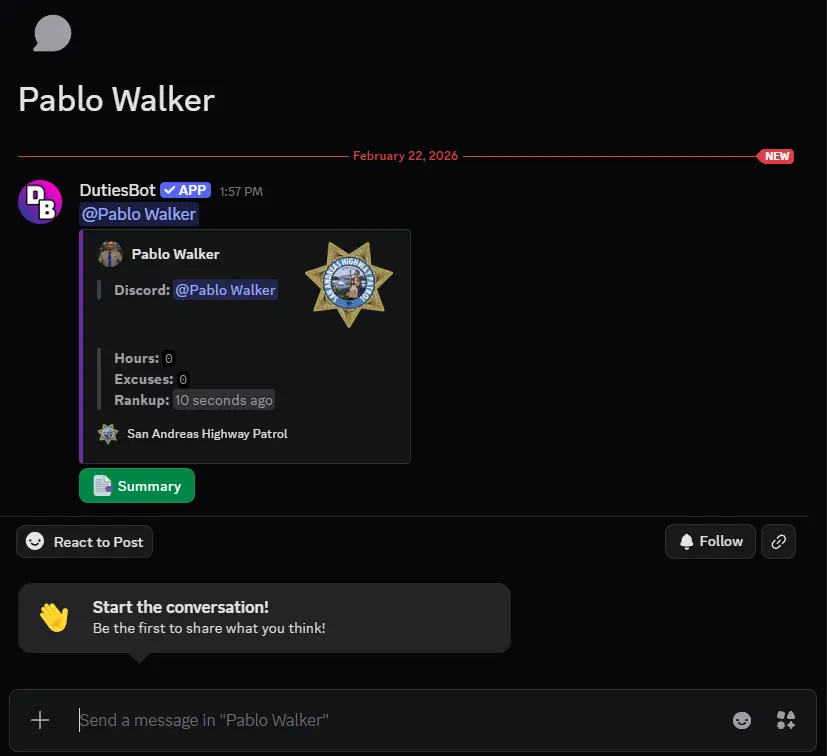
- If a folders channel is configured, a new forum thread (folder) is automatically created for the member.
- If member roles are configured, they are automatically assigned to the user.
Editing a Member
/member edit @user
Opens a modal pre-filled with the user's existing custom detail fields so you can update them. Requires member details to be configured for your team.
Promoting a Member
/member promote @user
Promotes the member to a higher rank. (Full rank management coming soon.)
Kicking a Member
/member kick @user
Removes the user from the team roster and strips any configured member roles from them. If the member has a folder, you are offered the choice to delete it or keep it — you have 15 seconds to decide, after which the folder is kept.
Member Details
Member details are custom fields that your team can define (e.g. "In-game name", "Badge number"). They are configured during setup or from the Dashboard. Each detail has:
- Name — displayed as the field label
- Placeholder — shown as example text in the modal
- Min / Max length — optional input length constraints
Member Folders
Each member can be assigned a folder — a forum thread in a designated Discord forum channel. Duties and excuses are automatically posted into this thread. Folders can be created:
- Automatically when a member is added (if a folders channel is set)
- Manually using
/set folder @user
Last update: 22. 2. 2026
Excuses
Learn how DutiesBot's Excuses feature lets team members submit absence requests in Discord with IC and OOC reasons, automatically posted to their folder.
Setup
Step-by-step guide to setting up DutiesBot on your Discord server — invite the bot, configure channels, and get started via the Dashboard or /setup command.